

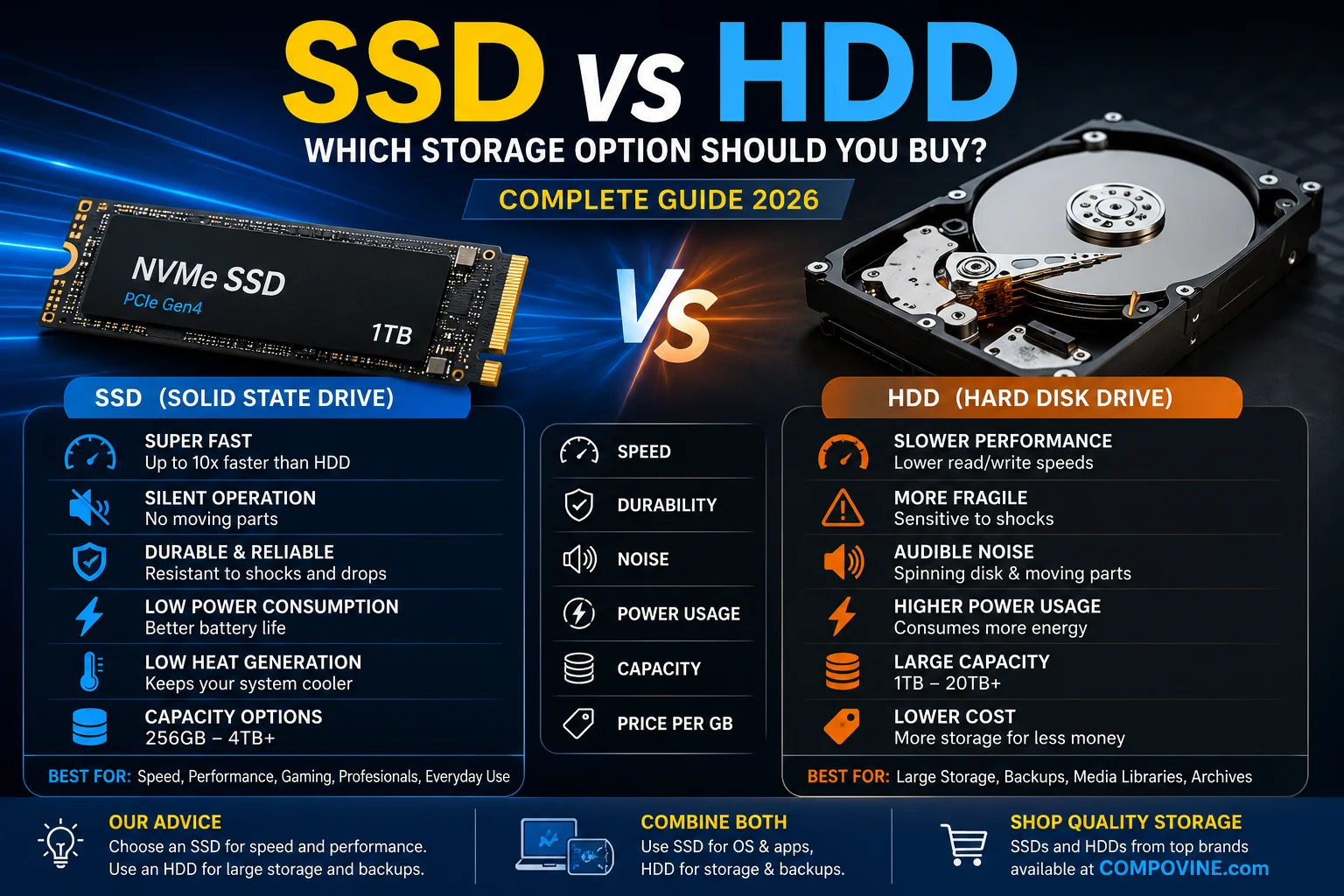
SSD vs HDD: Which Storage Option Should You Buy?
When buying a new laptop or desktop computer, one of the most important decisions you’ll make is choosing the right storage device. Storage affects how quickly your computer starts, how fast applications open, how responsive your system feels, and how much data you can keep.
Two of the most common storage technologies are Solid State Drives (SSDs) and Hard Disk Drives (HDDs). While both store your files, documents, photos, videos, and software, they differ significantly in speed, durability, capacity, and price.
In this guide, we’ll explain the differences between SSDs and HDDs, compare their strengths and weaknesses, and help you decide which option best suits your needs.
What Is an SSD?
A Solid State Drive (SSD) is a storage device that uses flash memory to store data. Unlike traditional hard drives, SSDs have no moving parts, allowing them to access and transfer data much faster.
Modern SSDs come in several form factors, including:
- SATA SSD
- M.2 SATA SSD
- M.2 NVMe SSD
- PCIe Gen 4 and Gen 5 SSDs
Because they are faster and more reliable, SSDs have become the standard storage solution for most new laptops and desktops.
What Is an HDD?
A Hard Disk Drive (HDD) is a traditional storage device that uses spinning magnetic disks (platters) and a mechanical read/write head to store and retrieve data.
HDDs have been widely used for decades and remain popular because they offer large storage capacities at a lower cost per gigabyte.
They are commonly available in capacities such as:
- 500GB
- 1TB
- 2TB
- 4TB
- 8TB and above
SSD vs HDD: At a Glance
| Feature | SSD | HDD |
|---|---|---|
| Speed | Very Fast | Slower |
| Boot Time | 10–20 seconds | 40–90 seconds |
| Noise | Silent | Audible spinning and clicking |
| Durability | High (no moving parts) | Lower (mechanical parts) |
| Power Consumption | Low | Higher |
| Heat Generation | Low | Higher |
| Weight | Lightweight | Heavier |
| Capacity | Typically 256GB–4TB | Typically 1TB–20TB |
| Price per GB | Higher | Lower |
| Best For | Everyday use, gaming, professionals | Large file storage, backups |
1. Performance and Speed
The biggest advantage of an SSD is its speed.
With an SSD, your computer can:
- Start Windows in seconds.
- Launch applications almost instantly.
- Open large files quickly.
- Transfer data at much higher speeds.
- Improve overall system responsiveness.
In contrast, HDDs rely on mechanical movement, which makes them noticeably slower for booting, loading applications, and copying files.
For users who value productivity and efficiency, SSDs offer a much smoother computing experience.
2. Durability and Reliability
Because SSDs have no moving parts, they are more resistant to physical shocks, vibrations, and accidental drops. This makes them an excellent choice for laptops that are frequently carried between home, school, or the office.
HDDs, however, contain delicate spinning disks and moving read/write heads. A sudden impact while the drive is operating can potentially lead to data loss or hardware failure.
If reliability and portability are priorities, SSDs have a clear advantage.
3. Storage Capacity
If you need to store massive amounts of data—such as videos, photos, backups, or surveillance footage—HDDs remain a cost-effective option.
Typical HDD capacities range from 1TB to 20TB, making them ideal for users with extensive storage needs.
SSDs are available in capacities from 256GB to 4TB (and higher in premium models), but larger SSDs generally cost significantly more.
4. Cost
Price is one area where HDDs still hold an advantage.
For the same budget, you can typically purchase a much larger HDD than an SSD. This makes HDDs appealing for users who prioritize storage capacity over speed.
However, the cost of SSDs has decreased substantially in recent years, making them increasingly affordable for everyday users.
When evaluating value, it’s important to consider not just storage size but also the significant performance improvements SSDs provide.
5. Power Efficiency
SSDs consume less power than HDDs because they do not require motors or spinning disks.
This results in:
- Longer laptop battery life.
- Reduced heat generation.
- Quieter operation.
For mobile users, students, and professionals who work on the go, this can make a noticeable difference.
6. Noise Levels
If you’ve ever heard a computer making clicking or spinning noises, it’s likely using an HDD.
SSDs operate silently because they have no moving mechanical components.
This contributes to a quieter and more comfortable working environment.
Which Storage Is Best for Different Users?
Students
Recommended: SSD
Students benefit from faster boot times, quicker application loading, and improved battery life, making SSDs the ideal choice for coursework, online learning, and productivity.
Office Professionals
Recommended: SSD
Professionals often switch between multiple applications throughout the day. An SSD helps improve workflow efficiency and reduces waiting times.
Gamers
Recommended: SSD (preferably NVMe)
Games installed on an SSD load much faster, reducing waiting times and improving the overall gaming experience. While an SSD won’t increase frame rates on its own, it significantly enhances loading speeds and responsiveness.
Content Creators
Recommended: SSD
Video editing, graphic design, and 3D rendering involve large files that benefit greatly from the speed of SSDs. High-performance NVMe SSDs are particularly well-suited for these demanding workloads.
Home Users
Recommended: SSD
For everyday activities such as browsing the web, streaming videos, and managing documents, an SSD provides a noticeably faster and smoother experience than an HDD.
Data Storage and Backup
Recommended: HDD
If your primary goal is storing large media libraries, backups, or archived files, an HDD offers excellent value due to its lower cost per gigabyte.
SATA SSD vs NVMe SSD
Not all SSDs are created equal.
SATA SSD
- Faster than HDDs.
- Affordable.
- Suitable for everyday computing.
- Ideal for upgrading older laptops and desktops.
NVMe SSD
- Significantly faster than SATA SSDs.
- Excellent for gaming, creative work, and professional applications.
- Better suited for modern systems with M.2 PCIe support.
If your device supports NVMe, it’s generally the better long-term investment.
Should You Upgrade from an HDD to an SSD?
If your computer still uses an HDD as its primary drive, upgrading to an SSD is one of the most impactful improvements you can make.
Benefits include:
- Faster startup times.
- Improved application performance.
- Shorter file transfer times.
- Better multitasking.
- Enhanced overall user experience.
In many cases, replacing an HDD with an SSD can make an older computer feel significantly faster without requiring a full system replacement.
Common Questions About SSDs and HDDs
Is an SSD better than an HDD?
For most users, yes. SSDs provide faster performance, greater durability, lower power consumption, and a quieter computing experience.
Can I use both an SSD and an HDD?
Yes. Many desktop computers and some laptops support both. A common setup is to install the operating system and applications on an SSD for speed, while using an HDD for storing large files and backups.
How much SSD storage do I need?
- 256GB: Basic users and students.
- 512GB: Professionals and general productivity.
- 1TB: Gamers, content creators, and users with larger storage needs.
- 2TB or more: Professionals working with extensive media libraries or large projects.
Does an SSD improve gaming performance?
An SSD reduces game loading times and improves responsiveness. While it doesn’t directly increase frames per second (FPS), it can significantly enhance the overall gaming experience by speeding up asset loading.
Final Verdict
Choosing between an SSD and an HDD depends on your priorities.
If you value speed, responsiveness, durability, and overall system performance, an SSD is the clear choice and is recommended for most modern laptops and desktops.
If your main concern is storing large amounts of data at a lower cost, an HDD remains a practical option, especially for backups and archival storage.
For the best of both worlds, many users combine an SSD for the operating system and frequently used applications with an HDD for additional storage.
Whether you’re upgrading an existing computer or buying a new one, selecting the right storage solution will have a lasting impact on your device’s performance and usability.
- Computer Accessories2 products
- External Drives2 products
- Computers103 products
- All-In-One PC37 products
- Desktops2 products
- Laptops57 products
- Monitors4 products
- Power Products6 products
- UPS6 products
- Printers62 products
- Laserjet Printers62 products
- Projectors and Cameras12 products
- Projectors12 products
- Scanners and Copiers13 products
- Photocopiers5 products
- Scanners8 products
